Create a Custom Report
Last updated: May 12, 2026
This guide explains how to create a custom report in Route Returns.
Step 1: Create template
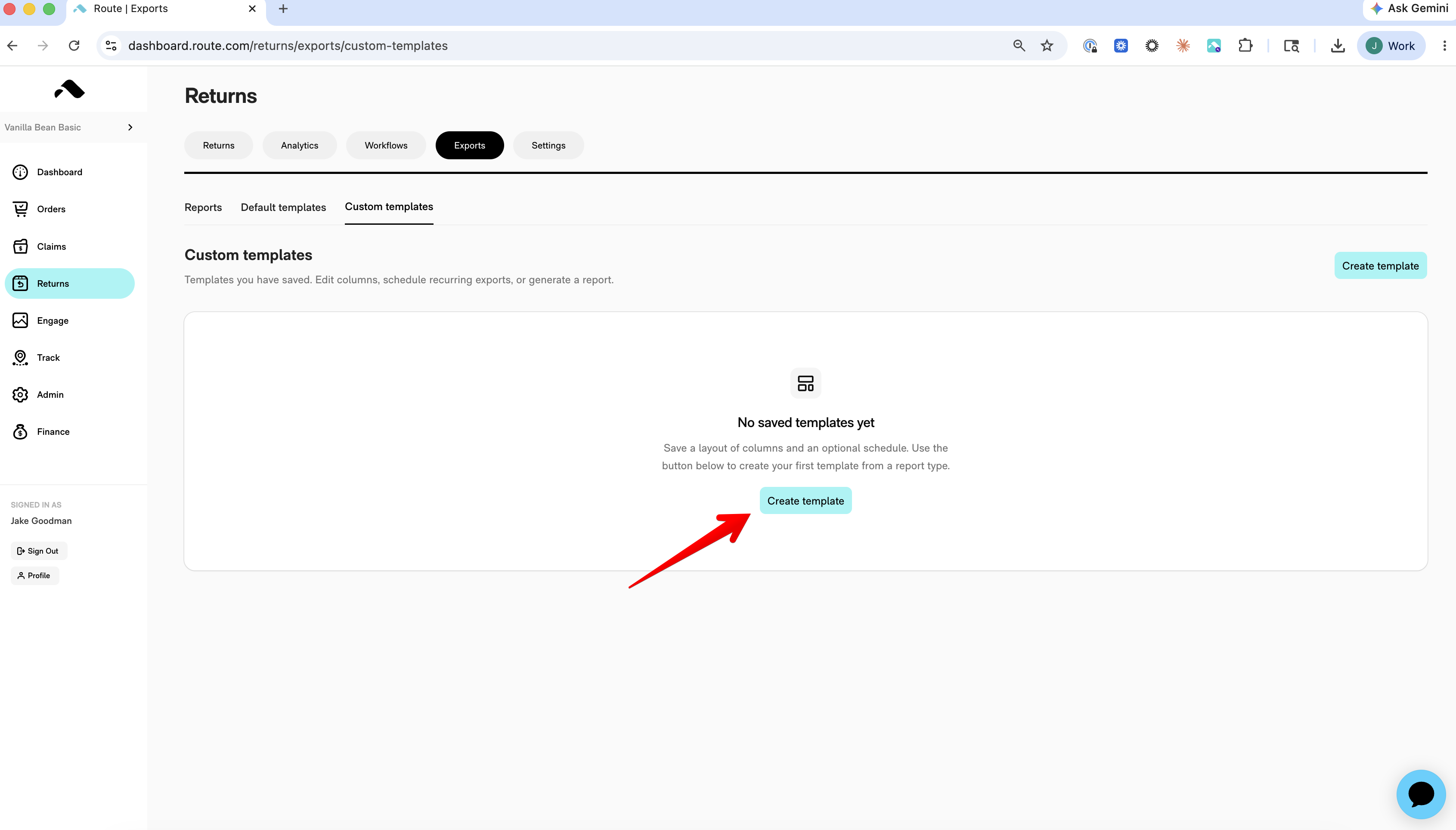
Go to Returns -> Exports -> Custom templates, and click "Create template"
Step 2: Save the template
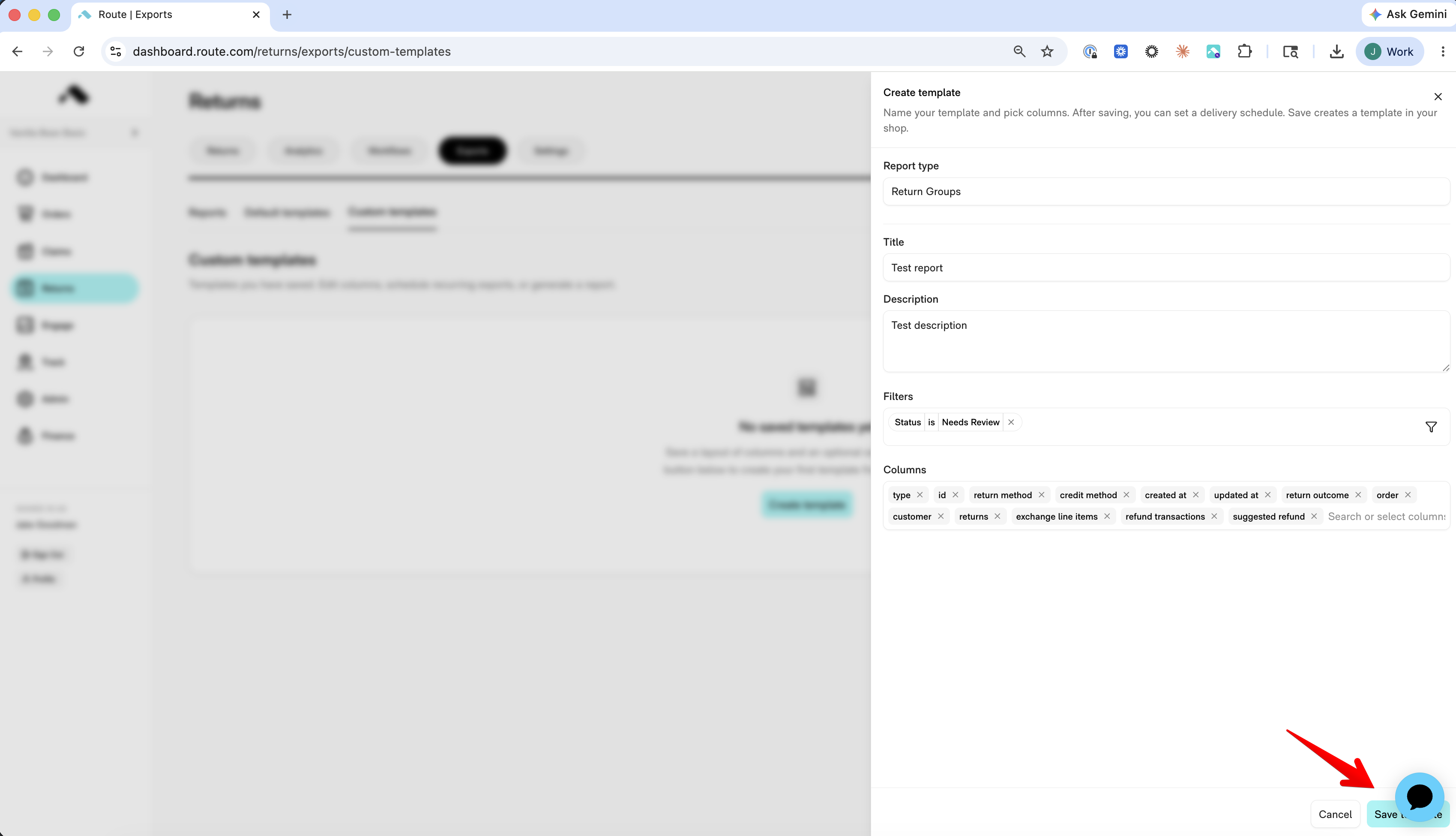
Choose a "Report type", enter a Title & Description, then optionally add a set of filters and choose which columns are to be included. Then click "Save template" in the bottom right
Step 3: Choose a schedule
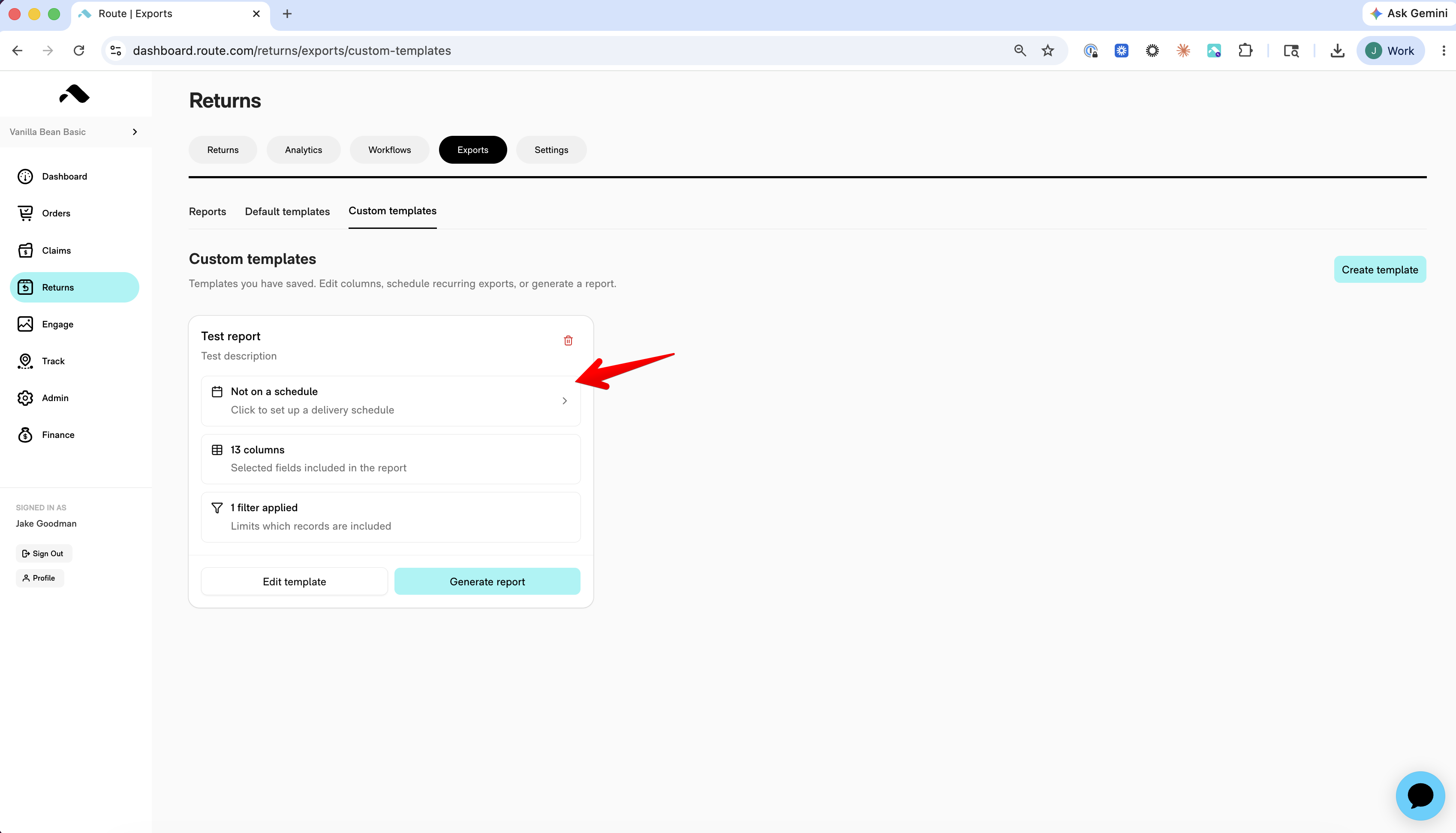
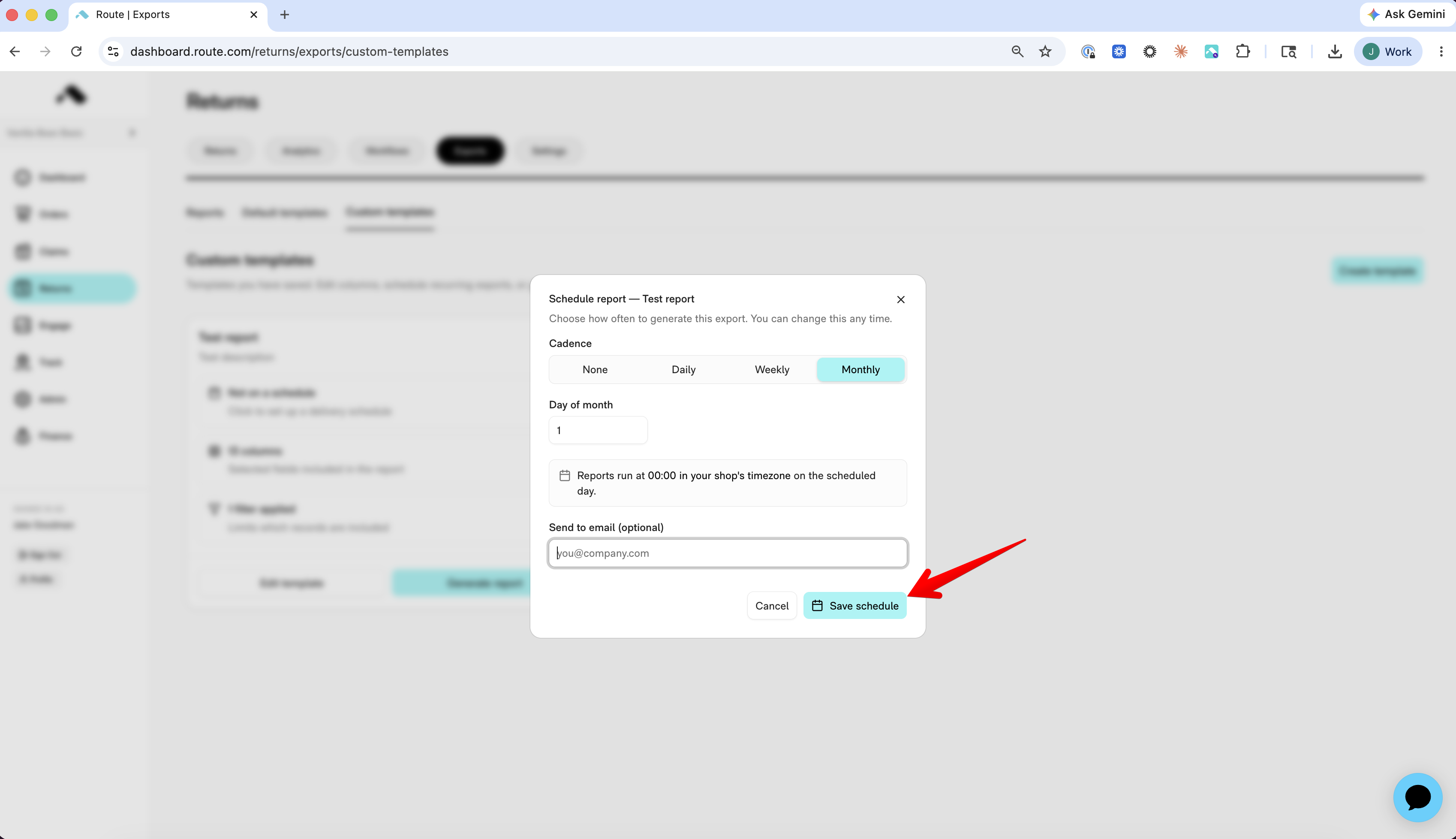
Select a Cadence for your scheduled report, optionally have it sent to your email address, then click "Save schedule." Whether or not an email is set, the reports will be generated and saved to your dashboard.
Step 4: Generate the report
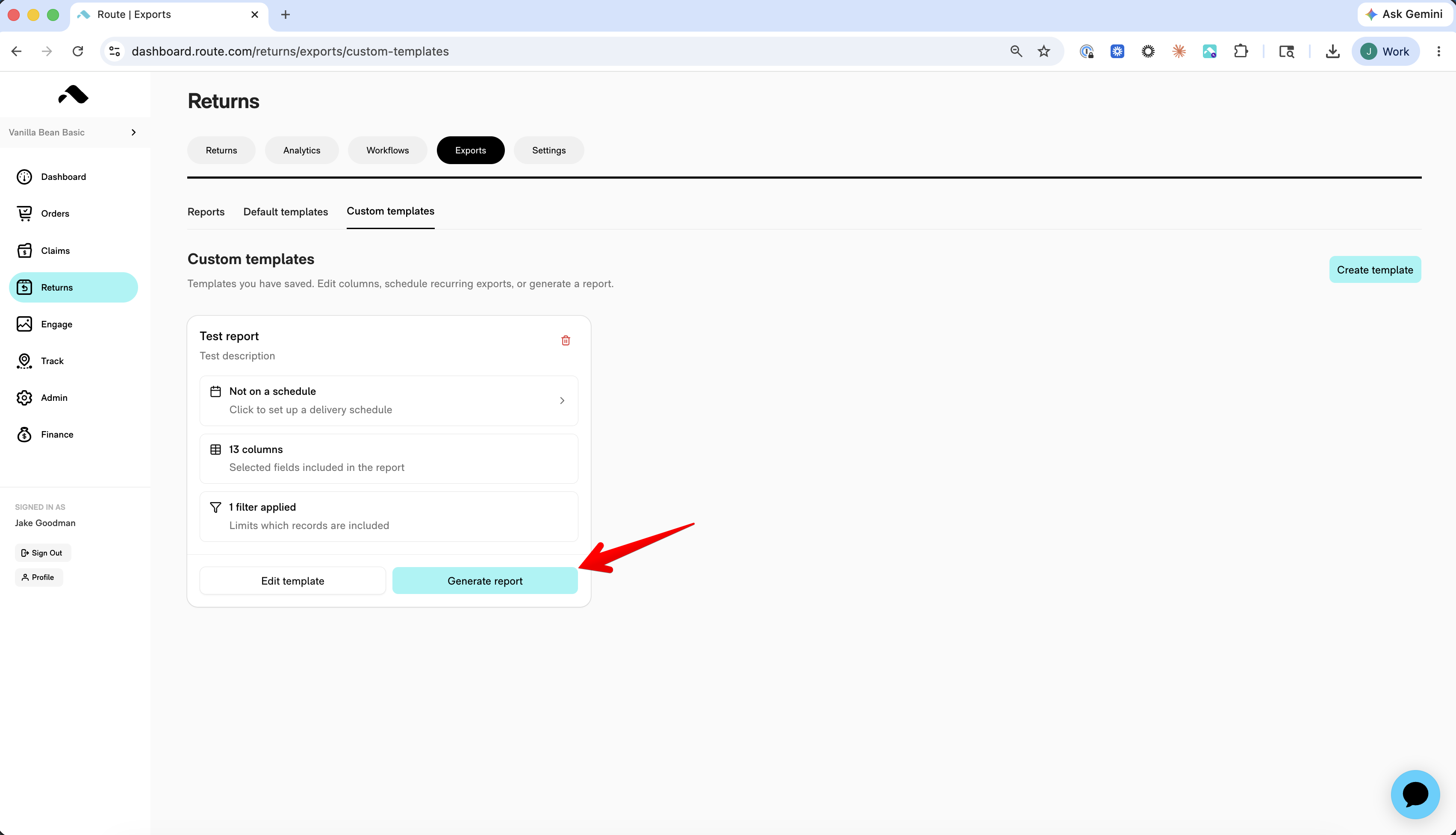
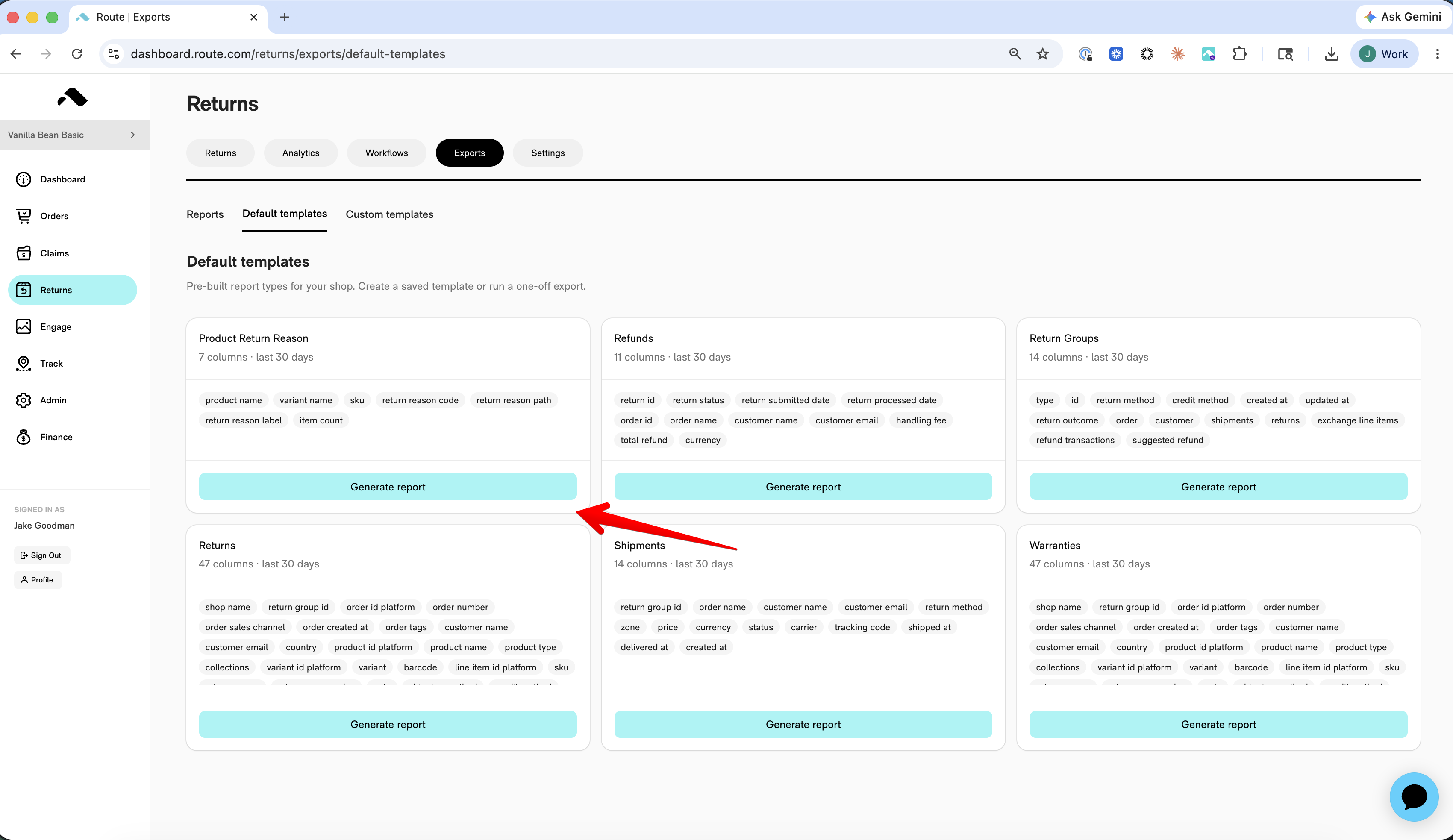
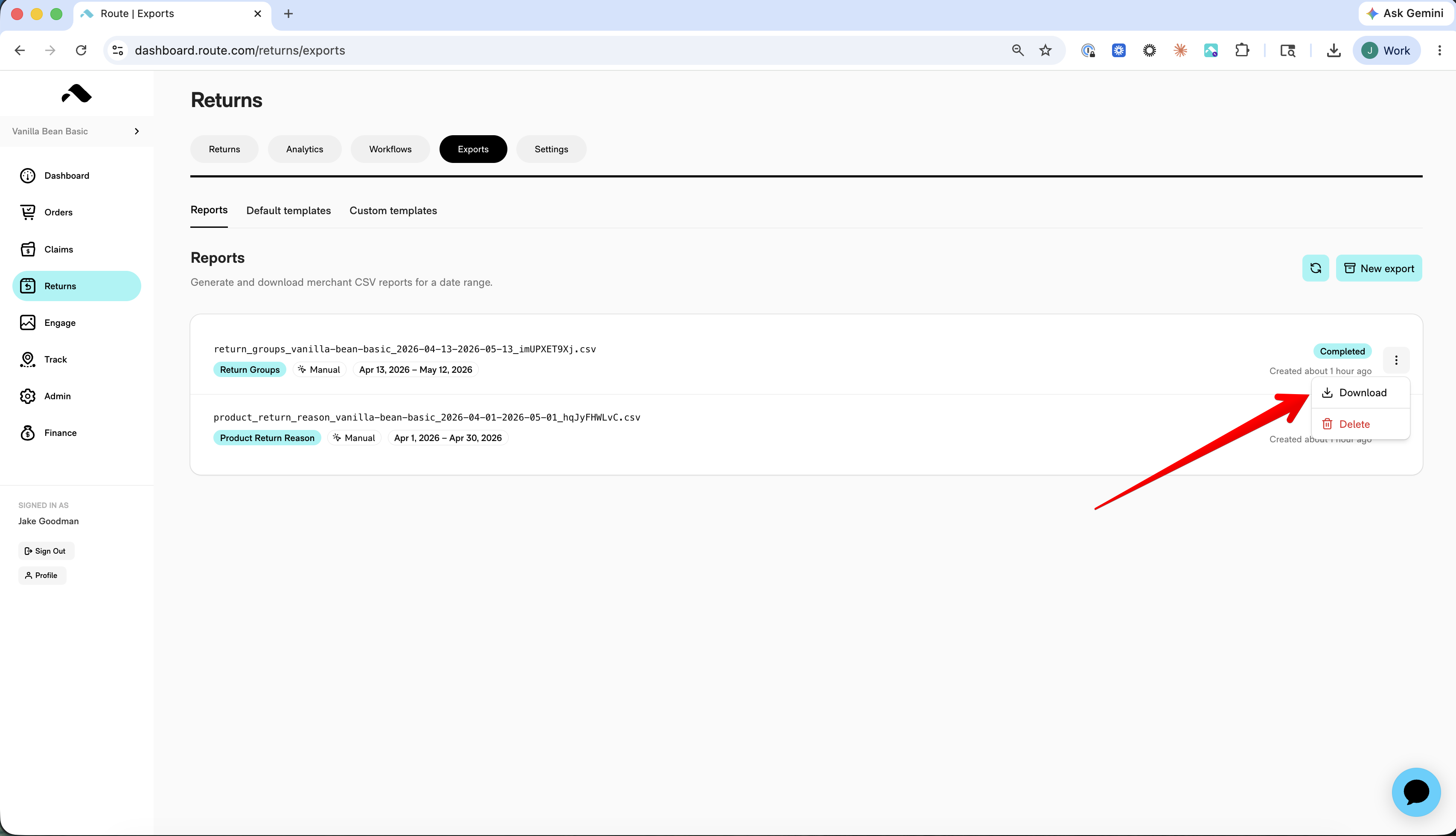
Generate a report on demand by clicking "Generate report", either on custom templates or default templates. Then go to the "Reports" tab to download the report once it has generated.